How to Install OpenCode: Desktop App and CMD / Terminal
Updated 25 October 2026.
In short: OpenCode is a free, open-source AI coding app. It comes in two forms: a desktop app
you install like any program, and a terminal app (CLI) you install with one command in CMD,
PowerShell or a shell. You can have both. On Windows, download the desktop installer from
opencode.ai/download, or run npm install -g @opencode/cli in CMD.
Which one to install
| Desktop app | Terminal app (CLI) | |
|---|---|---|
| What it is | A normal window with menus and a model picker | A full-screen app inside CMD, PowerShell or Terminal |
| How you install it | Download and run an installer | One command |
| What you need | Nothing else | Node.js (for npm), or Git Bash / a shell for the install script |
| How you use it | Point and click | Type opencode in any project folder |
Both are free. Any cost comes only from a paid model provider you connect.
Part 1: Install the desktop app
Step 1: Download the installer
Open opencode.ai/download and scroll to OpenCode Desktop. Click Download next to your system (box 1):
- Windows (x64) for most Windows PCs, or Windows (ARM64) for ARM laptops.
- macOS (Apple Silicon) for M-series Macs, or macOS (Intel) for older Macs.
- Linux (.deb) for Ubuntu and Debian, or Linux (.rpm) for Fedora and similar.
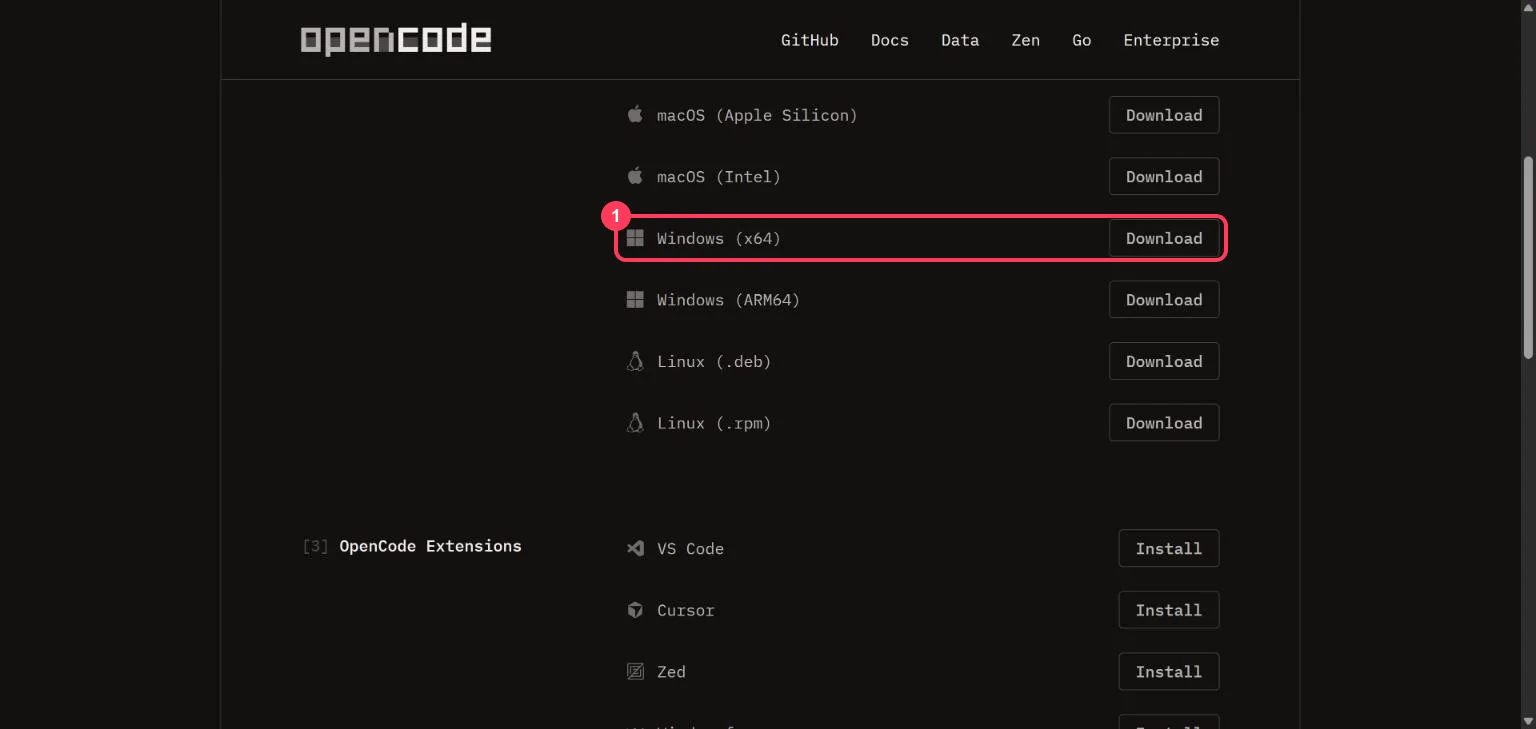
Not sure if your Windows PC is x64 or ARM64? Open Settings > System > About and look at System type.
Step 2: Run the installer
- Windows: open the downloaded
opencode-desktop-win-x64.exe(or the ARM64 file) and follow the installer. Then open OpenCode from the Start menu. - macOS: open the
.dmgfile and drag OpenCode into Applications. With Homebrew you can runbrew install --cask opencode-desktopinstead. - Linux: install the
.debor.rpmfile with your software installer, or from a terminal, for examplesudo apt install ./the-file-you-downloaded.deb.
Step 3: Open OpenCode
OpenCode opens with a message box and a model picker under it:
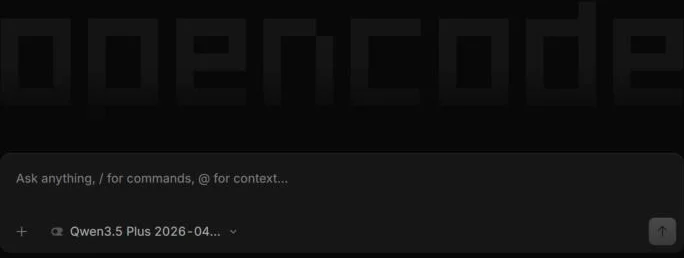
Type a question and press Enter. To pick a free model, or add your own free API key, follow how to add free API keys to OpenCode.
Part 2: Install the terminal app (CLI)
The download page lists the install commands at the top, under OpenCode Terminal. This guide uses the install script (box 1) and npm (box 2):
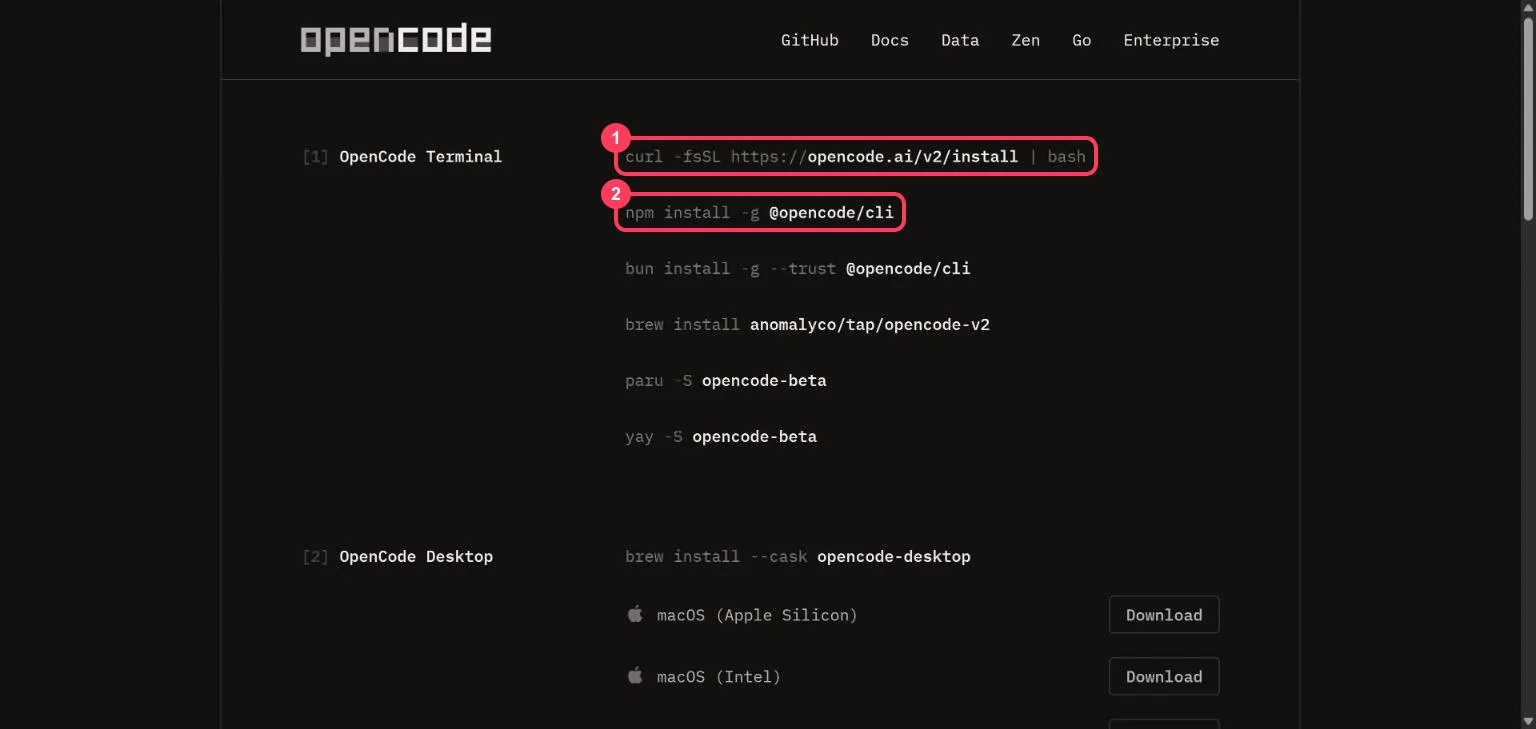
On Windows, with CMD or PowerShell (npm)
-
Install Node.js, which includes
npm: download the LTS version from nodejs.org and run the installer. -
Open CMD or PowerShell. Press the Start key, type
cmd(orPowerShell) and open it. -
Check that Node.js is ready:
node -v
npm -v
Each command prints a version number. If you see "not recognized", close the window, open a new one and try again.
-
Install OpenCode:
npm install -g @opencode/cli -
Check that it worked:
opencode --help
On Windows, with Git Bash (install script)
If you use Git Bash (it comes with Git for Windows), run the official install script there:
curl -fsSL https://opencode.ai/v2/install | bash
The script installs OpenCode into the .opencode\bin folder in your user folder and adds it to your
PATH. Close Git Bash and open it again before running opencode. The script needs a bash shell, so
it does not run in CMD or PowerShell; use npm there.
On macOS and Linux (shell)
Open Terminal and run the install script:
curl -fsSL https://opencode.ai/v2/install | bash
Or use a package manager:
# Homebrew (macOS and Linux)
brew install anomalyco/tap/opencode-v2

# npm (needs Node.js)
npm install -g @opencode/cli

# Arch Linux
paru -S opencode-beta
Open a new terminal window afterwards so the opencode command is found.
Start the terminal app
Go to the folder you want to work in, then start OpenCode:
cd path\to\your\project
opencode
On macOS and Linux, folders use / instead of \. Inside OpenCode, type /connect to add a
provider's API key and /models to choose a model. The free options are in
how to add free API keys to OpenCode.
Update or remove OpenCode
| Update | Remove | |
|---|---|---|
| Desktop app (Windows) | Download and run the newest installer | Settings > Apps > Installed apps > OpenCode > Uninstall |
| Desktop app (macOS) | Download the newest .dmg, or brew upgrade --cask opencode-desktop | Move OpenCode from Applications to the Bin |
| CLI installed with npm | npm install -g @opencode/cli | npm uninstall -g @opencode/cli |
| CLI installed with the script | Run the install script again | Delete the .opencode folder in your user folder |
When something goes wrong
| What you see | What it means | What to do |
|---|---|---|
'npm' is not recognized | Node.js is not installed, or the window was open before you installed it | Install Node.js from nodejs.org, then open a new CMD window |
'opencode' is not recognized after installing | The window does not know the new command yet | Close CMD, PowerShell or Git Bash and open a new one |
bash is not recognized, or the curl command fails in CMD | The install script needs a bash shell | Use npm install -g @opencode/cli in CMD, or run the script in Git Bash |
EACCES or permission denied with npm on macOS or Linux | npm cannot write to its global folder | Use the install script instead |
| Windows warns before running the installer | The file came from the internet | Make sure it was downloaded from opencode.ai, then continue |
Words to know
- Desktop app: OpenCode in its own window, installed with an installer.
- CLI (terminal app): OpenCode inside CMD, PowerShell or Terminal, installed with a command.
- CMD / PowerShell: the two command windows built into Windows.
- Git Bash: a bash shell for Windows that comes with Git for Windows.
- npm: the package installer that comes with Node.js.
- PATH: the list of folders your computer checks when you type a command.
Next steps
- How to add free API keys to OpenCode - use free models inside the app.
- How to get AI API keys for free - every free API and its daily limit.
Frequently asked questions
How do I install OpenCode on Windows?+
Download Windows (x64) from opencode.ai/download and run the installer for the desktop app. For the terminal app, install Node.js, then run npm install -g @opencode/cli in CMD or PowerShell.
How do I install OpenCode in CMD?+
Install Node.js from nodejs.org, open CMD and run npm install -g @opencode/cli. Then open a new CMD window and type opencode to start it.
How do I install OpenCode in PowerShell?+
The same as in CMD: with Node.js installed, run npm install -g @opencode/cli in PowerShell. The curl install script needs a bash shell, so it does not run in PowerShell.
How do I install OpenCode on Mac or Linux?+
Run curl -fsSL https://opencode.ai/v2/install | bash in Terminal, or use Homebrew (brew install anomalyco/tap/opencode-v2) or npm. The desktop app is on opencode.ai/download for both.
Is OpenCode free?+
Yes. OpenCode is free to use; any cost comes only from a paid model provider you connect. It also includes free models of its own.
Why is opencode not recognized after installing?+
The command window was open before the install. Close CMD, PowerShell or Git Bash and open a new one, then type opencode again.
More free API key tutorials
- How to get a Gemini API key for free
- How to get a Groq API key for free
- How to get an OpenRouter API key for free
- How to get a Cloudflare Workers AI API key for free
- How to get a Cohere API key for free
- How to get an Experimental Labs API key for free (with the $1 verification)
- Every free AI API and its daily limit
Want to use these APIs in a desktop app? OpenCode is a free, open-source AI coding app for Windows, Mac and Linux. How to add free API keys to OpenCode and pick a model.