How to Install Ollama on Windows, Mac and Linux
Steps checked against Ollama’s documentation on 1 November 2026.
In short: Ollama is a free app that downloads open AI models and runs them on your own computer, with no account and no internet once a model is downloaded. It installs on Windows 10 22H2 or newer, macOS 14 Sonoma or newer, and Linux. Below: every step for each system, how to keep models on another drive such as D:, and the commands you need afterwards. Which models fit your memory is in how to run an LLM locally.
What you need
| Windows | Mac | Linux | |
|---|---|---|---|
| System | Windows 10 22H2 or newer, Home or Pro | macOS 14 Sonoma or newer | Any; one-line installer |
| Graphics | NVIDIA driver 551.61 or newer; AMD through ROCm v7 or Vulkan | Apple M-series uses its graphics; Intel Macs use the processor only | NVIDIA (CUDA) and AMD (ROCm) optional |
| Disk | About 4 GB for the app, plus each model | Each model | Each model |
Figures from Ollama's pages for Windows, macOS and Linux. Models are separate downloads; Ollama's documentation says they "can be tens to hundreds of GB in size". The model used below, Gemma 4 E2B, is a 4.6 to 7.5 GB download.
Install Ollama on Windows
Step 1: Check your free disk space. Press the Windows key + E to open File Explorer and click This PC on the left. Under your C: drive it shows how much space is free.
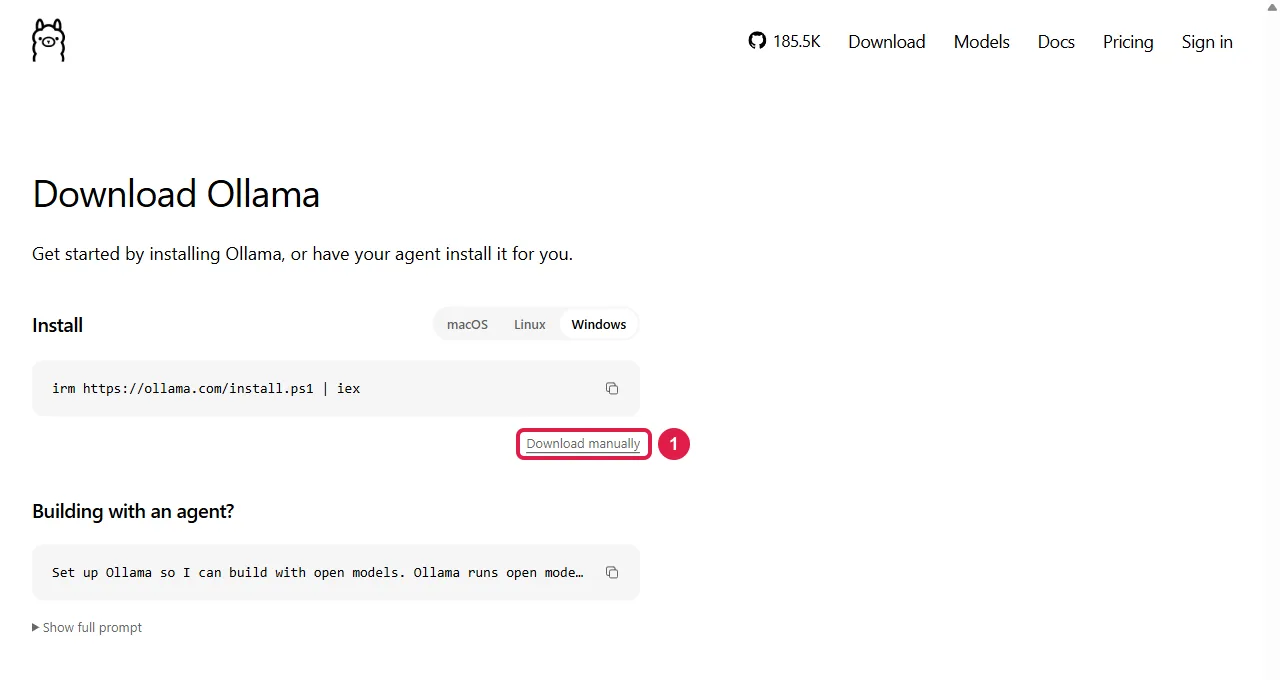
Step 2: Download the installer. Open ollama.com/download/windows
and click Download manually (box 1). The file OllamaSetup.exe downloads.
Step 3: Run the installer. Open your Downloads folder and double-click OllamaSetup.exe, then
click Install. It installs in your own user folder and does not ask for administrator rights. When it
finishes, Ollama keeps running in the background; its llama icon sits in the tray next to the clock.
Step 4: Open PowerShell. Press the Start key, type PowerShell, and press Enter. A window with a blinking cursor opens. This is where you type commands: type (or paste with a right-click) one line, then press Enter to run it.
Step 5: Check that Ollama is installed. Type this and press Enter:
ollama -v
It prints a line such as ollama version is 0.x.x. If it says "ollama is not recognized", close
PowerShell, open it again (Step 4) and repeat this step; a window that was open before the install does
not see the new command.
Step 6: Download and start a model. Type this and press Enter:
ollama run gemma4:e2b
A progress bar shows the download. When it finishes, a >>> prompt appears.
Step 7: Chat. Type a question after >>> and press Enter. The answer appears word by word.
Nothing is sent to the internet; the model runs on your computer.
Step 8: Leave the chat. Type this and press Enter:
/bye
To chat again later, open PowerShell and run Step 6 again; the model is already downloaded, so it starts in seconds.
The download page also shows a one-line installer for PowerShell,
irm https://ollama.com/install.ps1 | iex, which does Steps 2 and 3 in one go.
Install Ollama on the D: drive or another folder
Put the app on another drive. Ollama's Windows page gives an installer switch for this. Open PowerShell, go to your Downloads folder by typing this and pressing Enter:
cd Downloads
Then type this, with the folder you want, and press Enter:
.\OllamaSetup.exe /DIR="D:\Ollama"
Put the models on another drive. Models take far more space than the app, and this is the setting that moves them:
- Open Settings (Windows 11) or Control Panel (Windows 10) and search for environment variables.
- Click Edit environment variables for your account.
- Click New. Enter
OLLAMA_MODELSas the name and a folder on another drive, for exampleD:\ollama-models, as the value. - Click OK, then OK again.
- Right-click the Ollama icon by the clock, choose Quit, and start Ollama again from the Start menu.
Models downloaded after this go to the new folder. If you uninstall Ollama later, the uninstaller does not delete models stored in a folder set this way.
Install Ollama on a Mac
Step 1: Open ollama.com/download, click the macOS tab, then click
Download manually. The file Ollama.dmg downloads.
Step 2: Double-click Ollama.dmg in your Downloads folder, then drag the Ollama icon onto the
Applications folder.
Step 3: Open Applications and double-click Ollama. On first start it checks that the ollama
command is available and, if not, asks for permission to create it; click OK and enter your Mac's
password if asked.
Step 4: Open Terminal. Press Command + Space, type Terminal, and press Enter.
Step 5: Type this and press Enter. A version number means it worked:
ollama -v
Step 6: Type this and press Enter. After the download, type a question at the >>> prompt and
press Enter. Type /bye and press Enter to leave.
ollama run gemma4:e2b
Install Ollama on Linux (Ubuntu, Raspberry Pi)
Step 1: Open a terminal. On Ubuntu, press Ctrl + Alt + T. On Raspberry Pi OS, click the terminal icon in the top bar.
Step 2: Run the installer. Copy this line, paste it into the terminal with Ctrl + Shift + V, and press Enter:
curl -fsSL https://ollama.com/install.sh | sh
If it asks for your password, type it and press Enter. Nothing appears on screen while you type the password; that is normal.
Step 3: Type this and press Enter to check the install:
ollama -v
Step 4: Type ollama run gemma4:e2b and press Enter, then chat at the >>> prompt. /bye leaves.
The Linux page has the separate packages for AMD graphics cards and ARM64 computers. A 64-bit Raspberry Pi OS is ARM64; Google measured Gemma 4 E2B at 7.6 tokens per second on a Raspberry Pi 5 (16 GB), as listed in the low-end hardware guide.
Commands after installing
Run each in PowerShell (Windows) or Terminal (Mac, Linux), one line at a time, pressing Enter after
each. Replace gemma4:e2b with the model you use; every model's name is on
Ollama's library.
| What it does | Command |
|---|---|
| List the models you downloaded | ollama ls |
| Show running models and whether they use the graphics card | ollama ps |
| Show the speed after each answer (look for "eval rate") | ollama run gemma4:e2b --verbose |
| Unload a model from memory now | ollama stop gemma4:e2b |
| Delete a model and free its disk space | ollama rm gemma4:e2b |
In ollama ps, the PROCESSOR column says 100% GPU when the whole model is on the graphics card. A
split such as 48%/52% CPU/GPU means part of it is in normal RAM, which is slower
(Ollama FAQ). Ollama unloads an idle model after 5 minutes, and its default
conversation length is 4,096 tokens (set with the OLLAMA_CONTEXT_LENGTH environment variable).
Uninstall Ollama
Windows: open Settings, go to Apps (Add or remove programs), find Ollama and click Uninstall. Linux: the Linux page lists the commands that remove the service and files.
Related
- How to run an LLM locally: which models fit in how much memory, with LMArena scores and measured speeds.
- How to install LM Studio: the same job with windows and buttons, no terminal.
- How to install llama.cpp: the engine inside Ollama, for more control.
- How to run an LLM on low-end hardware.
- How to get an Ollama API key for free: Ollama's cloud models, not local.
Frequently asked questions
Is Ollama free?+
Yes. Ollama is free to download and run, and needs no account for local models.
How do I install Ollama on the D: drive?+
Run the installer from PowerShell with OllamaSetup.exe /DIR="D:\Ollama". To keep the models on D: as well, set a user environment variable named OLLAMA_MODELS to a folder there, such as D:\ollama-models, then restart Ollama.
What does Ollama need to run on Windows?+
Windows 10 22H2 or newer, Home or Pro. NVIDIA cards need driver 551.61 or newer; AMD cards work through ROCm v7 or Vulkan. Without a supported graphics card it runs on the processor.
Does Ollama work on a Raspberry Pi?+
Yes, through the Linux installer on a 64-bit (ARM64) system. Google measured Gemma 4 E2B at 7.6 tokens per second on a Raspberry Pi 5 with 16 GB.