How to Install llama.cpp on Windows, Mac and Linux
Steps checked against llama.cpp’s documentation on 1 November 2026.
In short: llama.cpp is the free, open-source engine that runs
most local AI models; Ollama and LM Studio are built on it. Installing it directly gives settings the apps
hide, such as keeping part of a model in normal RAM (--n-cpu-moe), which is how large models run on small
graphics cards. There are two ways in: Llama.app, a small desktop app for Mac and Windows 11, and the
command-line version for Windows, Mac and Linux. Both open a chat page in your browser at
localhost:9931.
Option 1: Llama.app, the desktop version
Llama.app is the llama.cpp project's own app. It sits in the menu bar (Mac) or the tray by the clock (Windows), picks the settings for you, and works offline once a model is downloaded. Its page lists Windows 11 for the Windows app, and suggests 16 GB of memory or more for Gemma 4, 24 GB or more for gpt-oss and 32 GB or more for Qwen 3.8.
Step 1: Download. Open llama.app and click Download for Windows 11 or Download for Mac (box 1). The page shows the button for the system you are on.
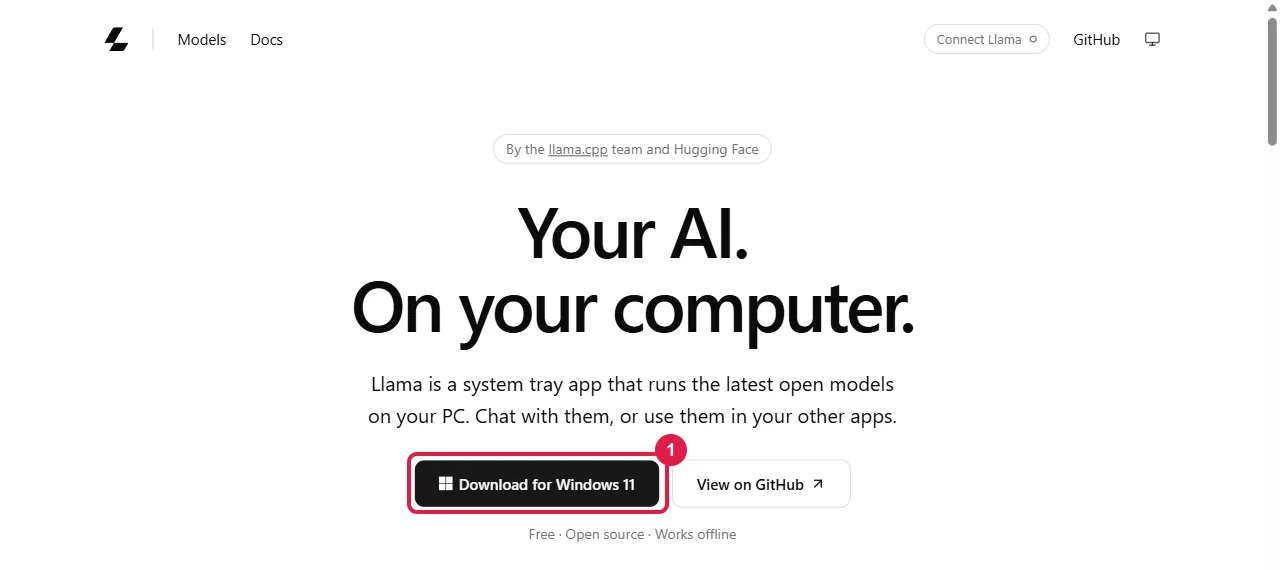
Step 2: Install. On Windows, open your Downloads folder and double-click the downloaded file. On a Mac, open the downloaded file and follow its steps; Llama.app then appears in the menu bar.
Step 3: Pick a model. Click the llama icon (by the clock on Windows, in the menu bar on a Mac) and choose a model from its list. It downloads once and is kept in the Hugging Face cache on your disk.
Step 4: Chat. Click Open chat. Your browser opens the chat page at http://localhost:9931; type a message and press Enter.
Option 2: Install the command-line version
Use this to run the commands in the low-end hardware guide. The commands are from llama.cpp's install guide.
Step 1: Open a terminal.
- Windows: press the Start key, type PowerShell, and press Enter.
- Mac: press Command + Space, type Terminal, and press Enter.
- Ubuntu: press Ctrl + Alt + T.
Step 2: Install. Type the line for your system and press Enter.
Windows (winget comes with Windows 11 and current Windows 10):
winget install llama.cpp
Mac or Linux with Homebrew:
brew install llama.cpp
Mac with MacPorts:
sudo port install llama.cpp
If winget asks you to accept the source agreement, type Y and press Enter. When it finishes, close the terminal window and open a new one, so it finds the new commands.
Step 3: Check it. Type this and press Enter. It prints the version:
llama-server --version
Step 4: Download a model and start the chat. Type this as one line and press Enter:
llama-server -hf ggml-org/Qwen3.5-0.8B-GGUF
-hf downloads the model from Hugging Face the first time; this one is the small example from llama.cpp's
README. Wait until the window says the server is listening.
Step 5: Chat. Open http://localhost:9931 in your browser, llama.cpp's built-in chat page, and type a message. To stop, click the terminal window and press Ctrl + C.
Any model published as a GGUF file on Hugging Face runs the same way: replace the name after -hf with the
model's page name, adding : and a version name to pick a size, for example
unsloth/gemma-4-26B-A4B-it-qat-GGUF:UD-Q4_K_XL.
Settings worth knowing
Add these after the model name in Step 4. They are listed in llama.cpp's server documentation:
| Setting | What it does |
|---|---|
-c 8192 | Length of the conversation the model keeps; smaller uses less memory |
-ngl 20 | How many layers go on the graphics card (default: automatic) |
--cpu-moe | Keep all mixture-of-experts weights in normal RAM |
--n-cpu-moe 20 | Keep the experts of the first 20 layers in normal RAM |
--port 8080 | Use another port instead of 9931 |
With --n-cpu-moe, an 8 GB RTX 3050 ran Gemma 4 26B A4B at 24 to 33 tokens per second; the
low-end hardware guide has the measurements and how to choose the
number.
Other ways to install
llama.cpp's README also lists one-line installers for the llama
command (irm https://llama.app/install.ps1 | iex in PowerShell,
curl -LsSf https://llama.app/install.sh | sh on Mac and Linux), ready-made files on its
releases page, Docker, conda-forge and Nix.
Related
- How to run an LLM locally: which models fit in how much memory, with LMArena scores and measured speeds.
- How to run an LLM on low-end hardware: MoE offload and other techniques, measured.
- How to install Ollama and how to install LM Studio: the simpler apps built on llama.cpp.
- Run open models locally: llama.cpp, Ollama and vLLM.
Frequently asked questions
How do I install llama.cpp on Windows?+
Either download Llama.app from llama.app (Windows 11), or open PowerShell and run winget install llama.cpp. Then llama-server -hf followed by a model name downloads the model and opens a chat at localhost:9931.
What port does llama.cpp use?+
llama-server and Llama.app serve their chat page and API on port 9931 by default, at http://localhost:9931. Add --port followed by a number to use another.
Is llama.cpp free?+
Yes. llama.cpp is free and open source, and Llama.app is the project’s free desktop version.
What is the difference between llama.cpp and Ollama?+
llama.cpp is the engine; Ollama and LM Studio are apps built on it. Running llama.cpp directly gives settings the apps hide, such as --n-cpu-moe for keeping part of a large model in normal RAM.